Dynamic Light Scattering
Dynamic Light Scattering (DLS), also known as photon correlation spectroscopy, is a technique used to measure the size distribution of particles in suspension or polymers in solution. It works by analyzing the fluctuations in the intensity of scattered laser light caused by the Brownian motion of particles. Smaller particles move faster and produce faster fluctuations, allowing the hydrodynamic diameter and polydispersity of the sample to be determined.
This module allows visualizing DLS measurements and generating statistical reports across multiple samples.
Supported file formats
| Format | Extension | Description |
|---|---|---|
| Zetasizer binary | .zmes | Native binary format from Malvern Panalytical Zetasizer instruments. Contains the full cumulant fit, all three distribution modes (intensity, volume, number), count rate, and instrument metadata. |
| Zetasizer text | .txt | Plain-text export from Malvern Panalytical Zetasizer instruments. |
| JCAMP-DX | .jcamp, .dx | Generic spectroscopy interchange format. |
Upload
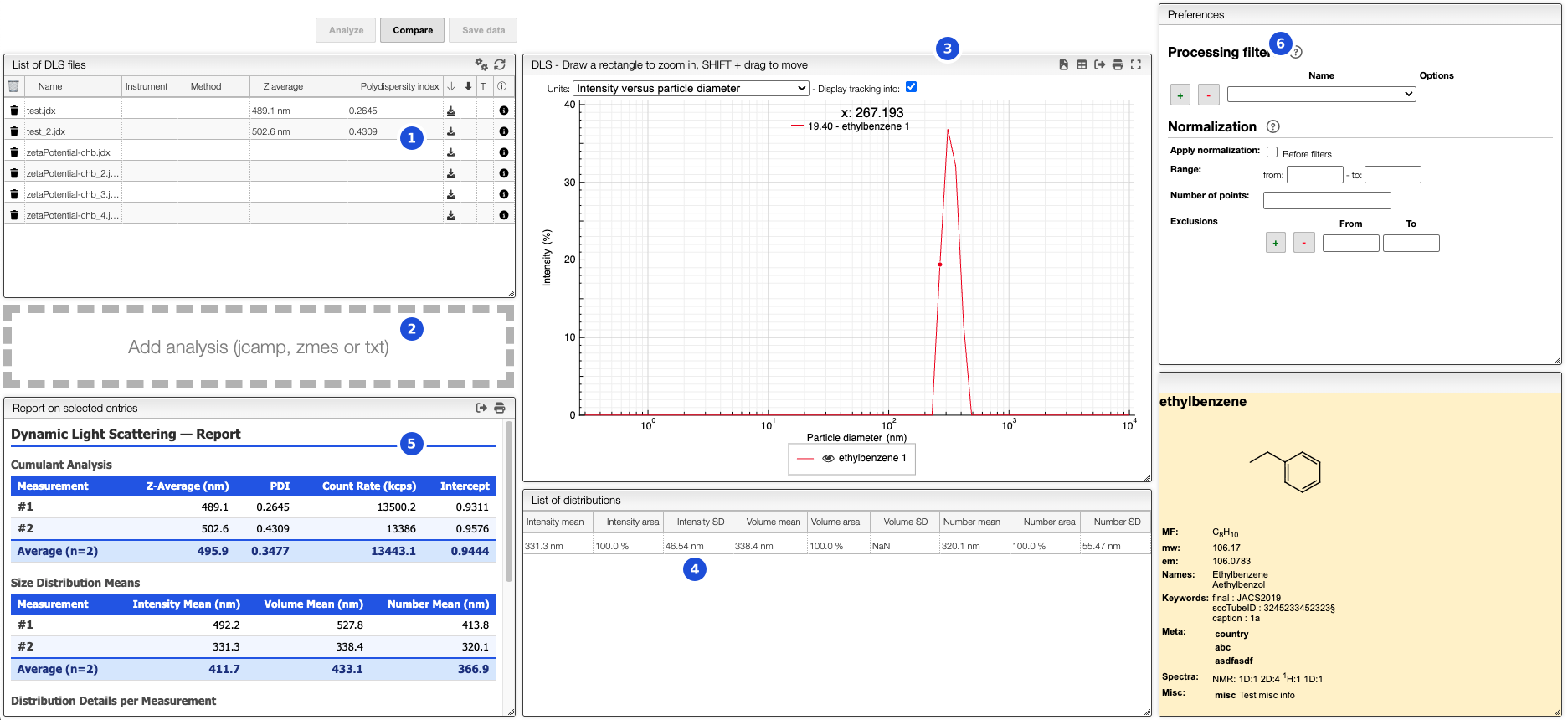
The file list (1) shows all DLS measurements attached to the current sample. New files can be uploaded by drag-and-drop onto the upload area (2) or pushed automatically from the instrument. Note that you can only upload files to samples to which you have write access.
Visualization
To add measurements to the chart (3), click on the + next to a file in the list (1). The measurement will then appear in the chart panel from which you can control the visualization settings.
If you click on the color in a row, you can select any color you wish for the line.
In the chart you can draw a rectangle to zoom and double click to reset. You can move the graphs by pressing SHIFT ⇧ while dragging them.
Display units
The units selector controls which distribution is plotted on the chart:
- Intensity versus particle diameter: the intensity-weighted size distribution
- Volume versus particle diameter: the volume-weighted size distribution
- Number versus particle diameter: the number-weighted size distribution
The X axis (particle diameter) is displayed on a logarithmic scale in nanometres.
Display tracking info
Enabling the Display tracking info checkbox shows the exact particle diameter value at the current mouse position directly on the chart.
List of distributions
The distributions table (4) summarizes the key statistics for each distribution mode of the selected measurement:
| Column | Description |
|---|---|
| Intensity mean / area / SD | Mean diameter, area under the curve, and standard deviation for the intensity distribution |
| Volume mean / area / SD | Same quantities for the volume distribution |
| Number mean / area / SD | Same quantities for the number distribution |
Report
The report panel (5) aggregates data across selected measurements. If no entries are selected, all loaded measurements are included in the report.
Cumulant Analysis
Summarizes the primary DLS result for each measurement and computes the average:
| Column | Description |
|---|---|
| Z-Average (nm) | Intensity-weighted mean hydrodynamic diameter from the cumulant fit |
| PDI | Polydispersity index (0 = monodisperse, >0.5 = broadly polydisperse) |
| Count Rate (kcps) | Detected photon count rate in kilocounts per second |
| Intercept | Intercept of the correlation function (quality indicator, ideally close to 1) |
The Average row at the bottom shows the mean of all selected measurements.
Size Distribution Means
Reports the mean diameter from each weighted distribution for every measurement:
| Column | Description |
|---|---|
| Intensity Mean (nm) | Mean of the intensity-weighted distribution |
| Volume Mean (nm) | Mean of the volume-weighted distribution |
| Number Mean (nm) | Mean of the number-weighted distribution |
The Average row shows the mean across all selected measurements.
Distribution Details per Measurement
Provides a full breakdown of each individual distribution peak for each measurement.
Processing
The Preferences panel (6) on the right provides normalization and filtering options.
Normalization
- Apply normalization: enable normalization of the spectra before display
- Before filters: apply normalization before or after the processing filters
- Range: restrict the X range (min / max particle diameter in nm) used for processing
- Number of points: resample the distribution to a fixed number of points. Useful for aligning spectra on the X axis, but only applicable to monotone data
- Exclusions: define X-axis zones to ignore during processing
In many tables it is possible to select which columns to display. This
is achieved by clicking on the icon.
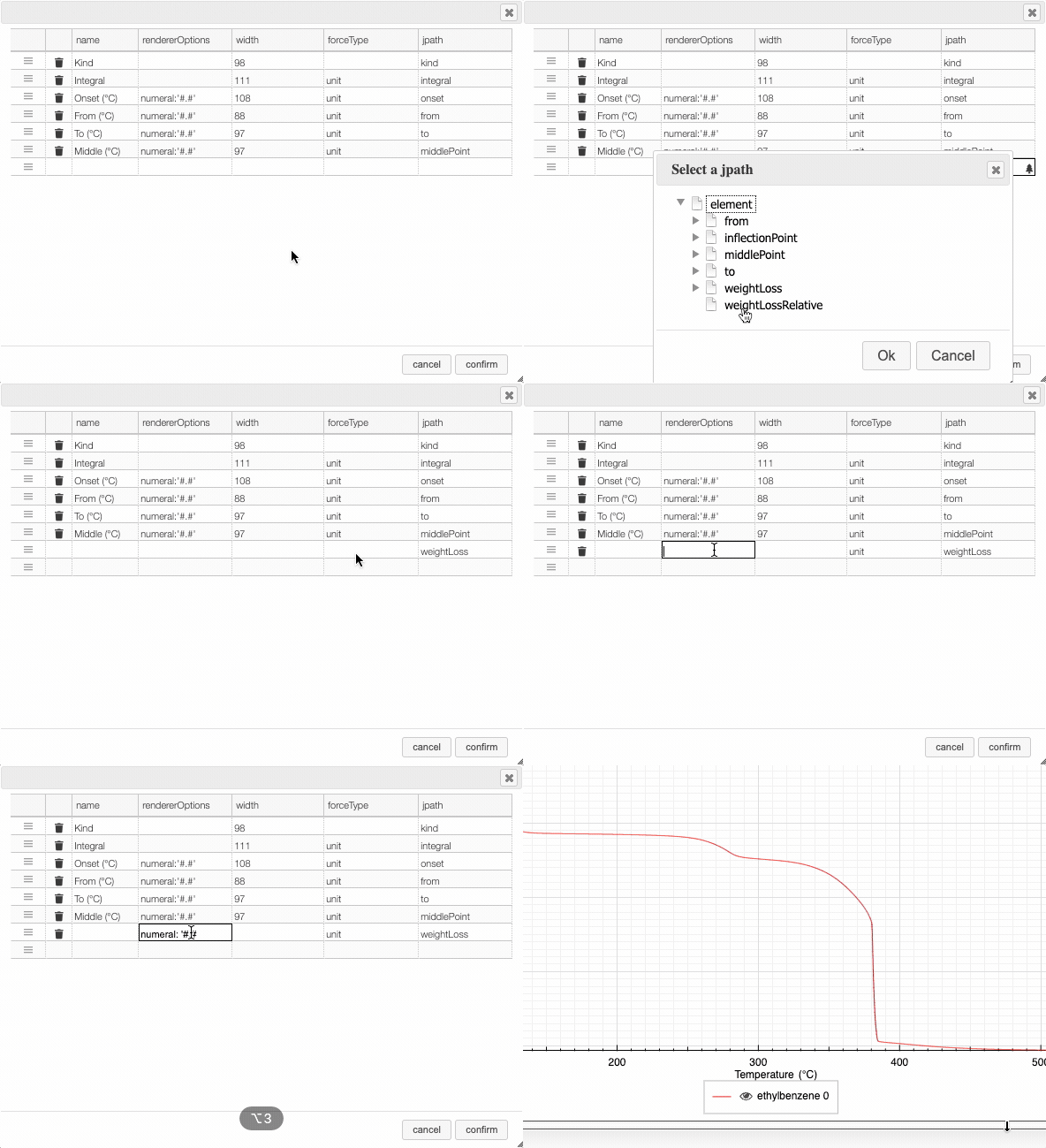
After clicking on the icon, a dialog box opens that allows you to add a new column.
There are 5 parameters to fill in for a new column:
- name: the column name. This will be displayed as the header of the column.
- rendererOptions: options that allow you, among other things, to format numbers. One very useful formatter is
numeral(see below) - width: number of pixels for the specific column. May stay empty for automatic layout.
- forceType: select how to display complex values (see later)
- jpath: where to find the information to display in the column
To add a new column, you need to select the jpath using the hierarchical drop-down menu.
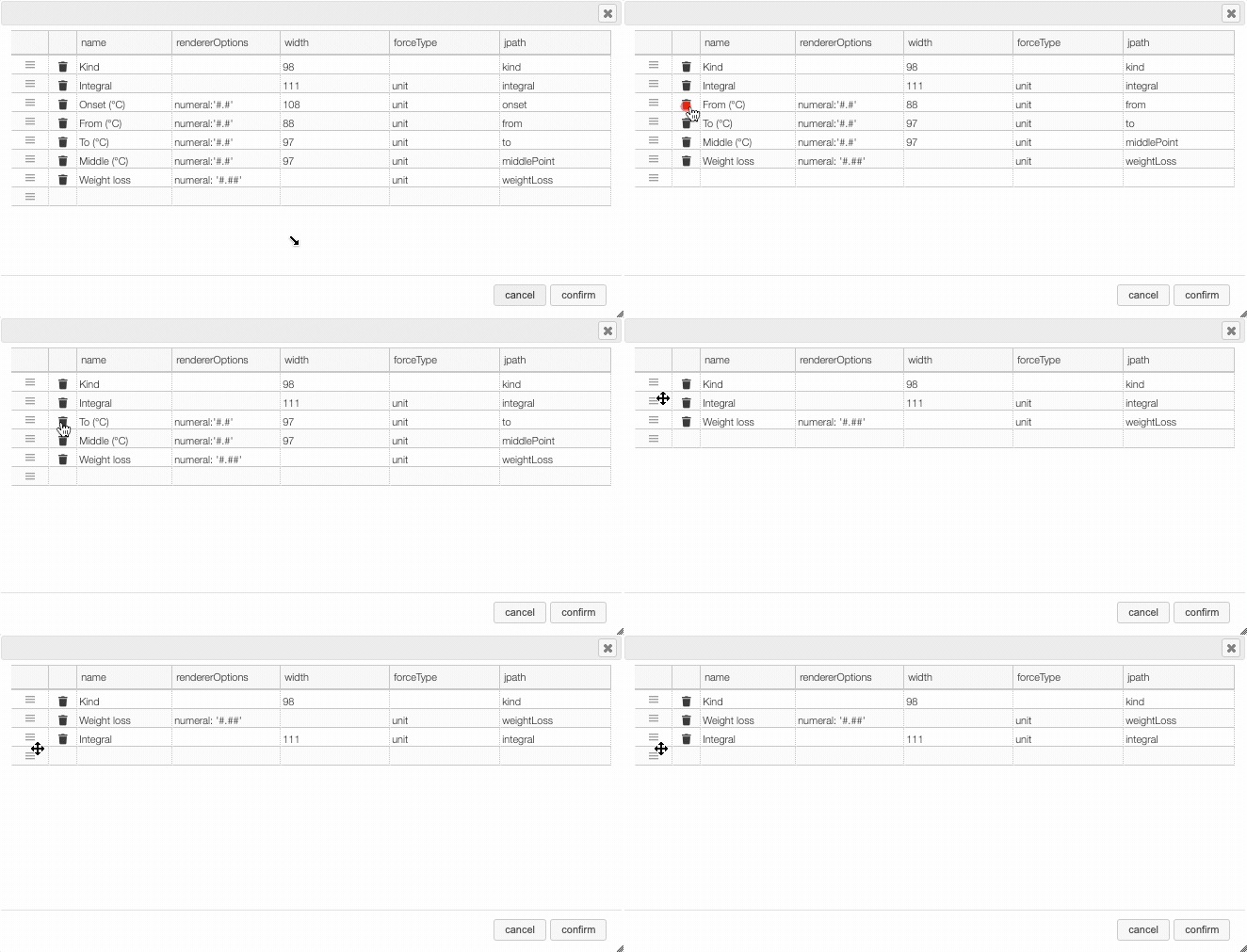
Columns can be moved or rearranged as well.
rendererOptions: numeral
number,
| Value to format | rendererOptions | Result |
|---|---|---|
| 12.345678 | numeral:'#.##' | 12.34 |
| 12.3 | numeral:'#.00' | 12.30 |
| 0.3 | numeral:'#.0 %' | 30.0 % |
forceType
In the database some values are stored as an object that needs to be displayed to the user in an intuitive way.
For example the unit type will store in the database the value using as units SI (we convert the data to the units defined by the 'standard international') and specify in which units the user would like to display the data. So in the following example we are in fact storing the value -150°C by storing the value in SI (Kelvin) and specifying that the user wants to see it in °C.
{
  "SI": 123.15,
  "unit": "°C"
}
Another example is the valueUnits type that will store the data in 2 different properties
(value and unit). In this case the value is stored in the specified units and there is no conversions.
{
  "value": 123,
  "units": "°C"
}
While this way to store the data in the database is very practical it is not the way that the user would like to see his results. We have therefore the possibility to forceType: define how the user would like to see the results.
Other types include mf. This formatter allows to correctly display a molecular formula that is stored in the database as "C10H20O3". i.e. it will put the numbers in subscript (C₁₀H₂₀O₃).